User Guide & Standard Operating Procedure
How to run Oshaani day to day: sign in, connect networks, post once to many destinations, handle DMs, and spend credits only when you use AI.
App: social.oshaani.com
Download PDFTable of contents
- 1. Overview
- 2. Getting started
- 3. Connect accounts
- 4. Post to connected accounts
- 5. LinkedIn
- 6. Facebook, Instagram, WhatsApp, YouTube & X
- 7. Inbox, auto-reply & human takeover
- 8. Calendar & analytics
- 9. AI Agent & conversations
- 10. Credits
- 11. Platform rules & best practices
- 12. Mobile app
- 13. Troubleshooting
- 14. Getting help
1. Overview
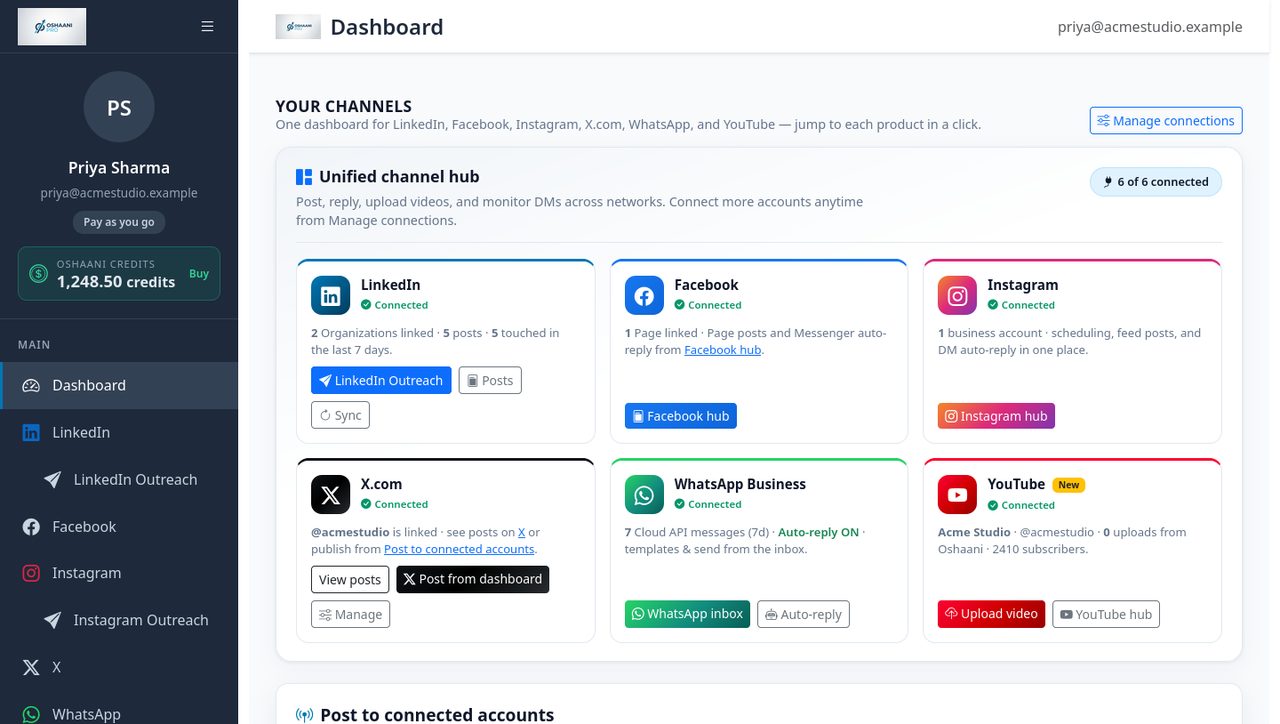
Oshaani is a multi-network social workspace. From one dashboard you publish to LinkedIn (personal and company pages), Facebook Pages, Instagram, WhatsApp Business, YouTube, and X; reply to comments and DMs; and optionally let Oshaani AI draft posts or auto-reply.
What you can do
- Write once, post many: Use Post to connected accounts on the dashboard. Pick destinations under Where to post.
- Network hubs: LinkedIn, Facebook, Instagram, WhatsApp, and YouTube each have a dedicated page for inbox, scheduling, and settings.
- AI when you want it: Generate drafts, analyze a LinkedIn profile, and auto-reply to comments or DMs. Direct posts you write yourself do not use credits.
- Human takeover: Replying in a WhatsApp, Instagram, or Facebook Messenger thread does not stop AI auto-reply. Use Pause AI in that thread to stop it for that person until you resume it.
Who this SOP is for
Account owners and team members who publish or reply from Oshaani. Follow these procedures in order the first time you set up an account; after that, jump to the section you need.
2. Getting started
Sign in
Authentication
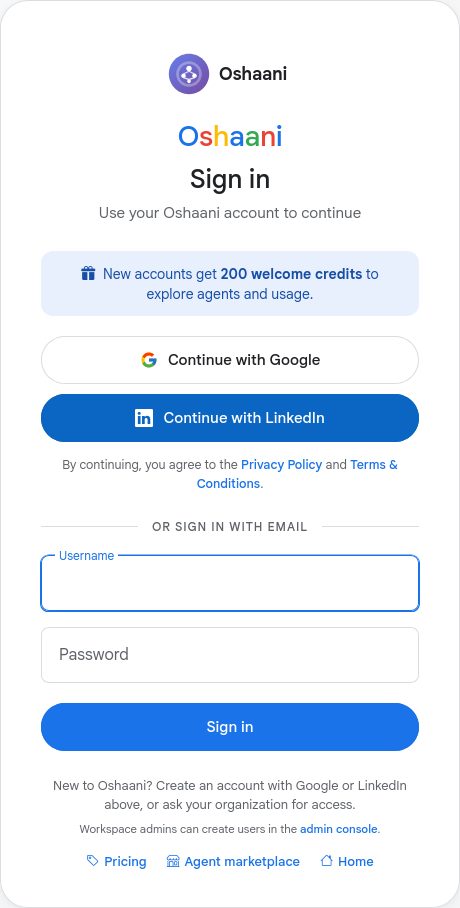
- Open the sign-in page. You are taken to the Oshaani sign-in screen — one Oshaani account works on oshaani.com and Oshaani Social.
- Choose Continue with Google or Continue with LinkedIn, or sign in with your Oshaani username and password. New users can create an account with Google or LinkedIn on the same screen.
- Authorize the app if the network asks. Oshaani never stores your social passwords for sign-in.
- You land on the dashboard.
New accounts receive 200 free AI credits. There is no subscription required. Credits are spent when you run AI actions (drafts, analysis, auto-replies), plus a 100-credit monthly platform fee on pay-as-you-go (waived on monthly plans).
Optional: use your own Oshaani agent token
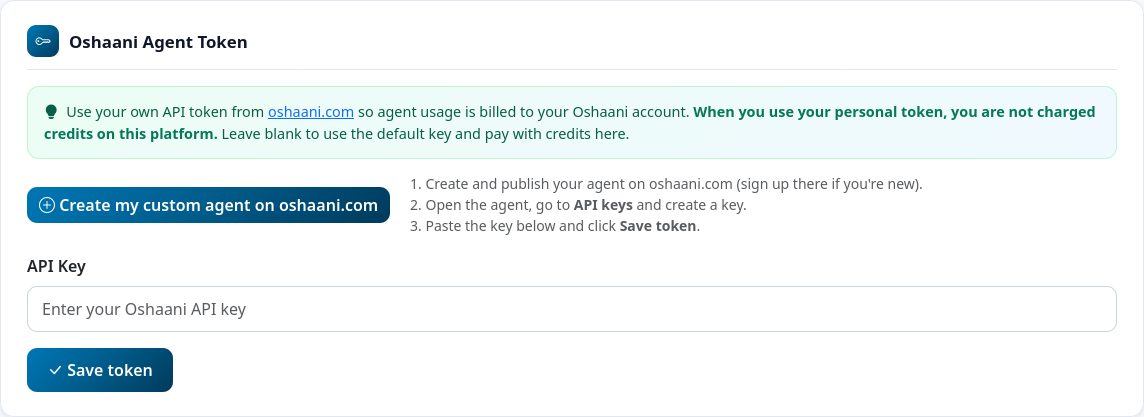
AI features work out of the box and are paid for with your Oshaani credits. If you have your own agent on oshaani.com, you can use its token instead so agent usage is billed to that agent.
- Open Profile in the sidebar and scroll to Oshaani Agent Token.
- Click Create my custom agent on oshaani.com (or open your existing agent), go to API keys, and create a key.
- Paste the key into API Key and click Save token. Leave it blank to keep using the default key.
3. Connect accounts
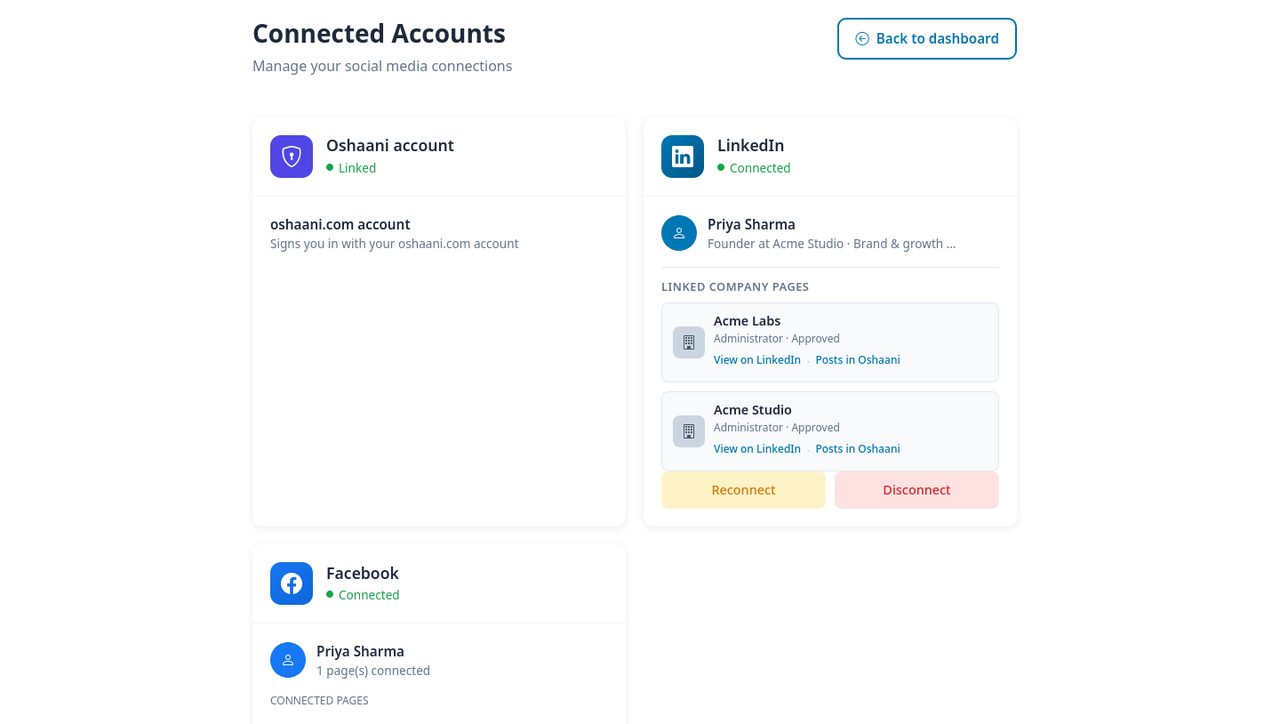
Sign-in does not always connect every network for posting. Link each destination you want under Connected Accounts or from that network’s hub in the sidebar.
Recommended order
- LinkedIn — Connect, then open LinkedIn Organizations and click Sync Organizations so company pages appear under Where to post.
- Facebook — Connect Pages you admin. Messenger inbox and auto-reply live on the Facebook hub.
- Instagram — Connect a professional (business or creator) account linked to a Facebook Page. Needed for feed posts, Reels, and DMs.
- WhatsApp — Open WhatsApp in the sidebar and complete setup (Embedded Signup or Cloud API credentials). The number must be on Meta Cloud API to receive DMs.
- YouTube — Connect with Google and grant upload access for your channel.
- X — Connect from Connected Accounts or the dashboard card, then post from the unified composer.
Reconnect when tokens expire
If publish fails with an auth or permission error, go to Connected Accounts and reconnect that network. For LinkedIn company pages, reconnect LinkedIn with Page posting permission if LinkedIn returns a denied/org-page error.
4. Post to connected accounts
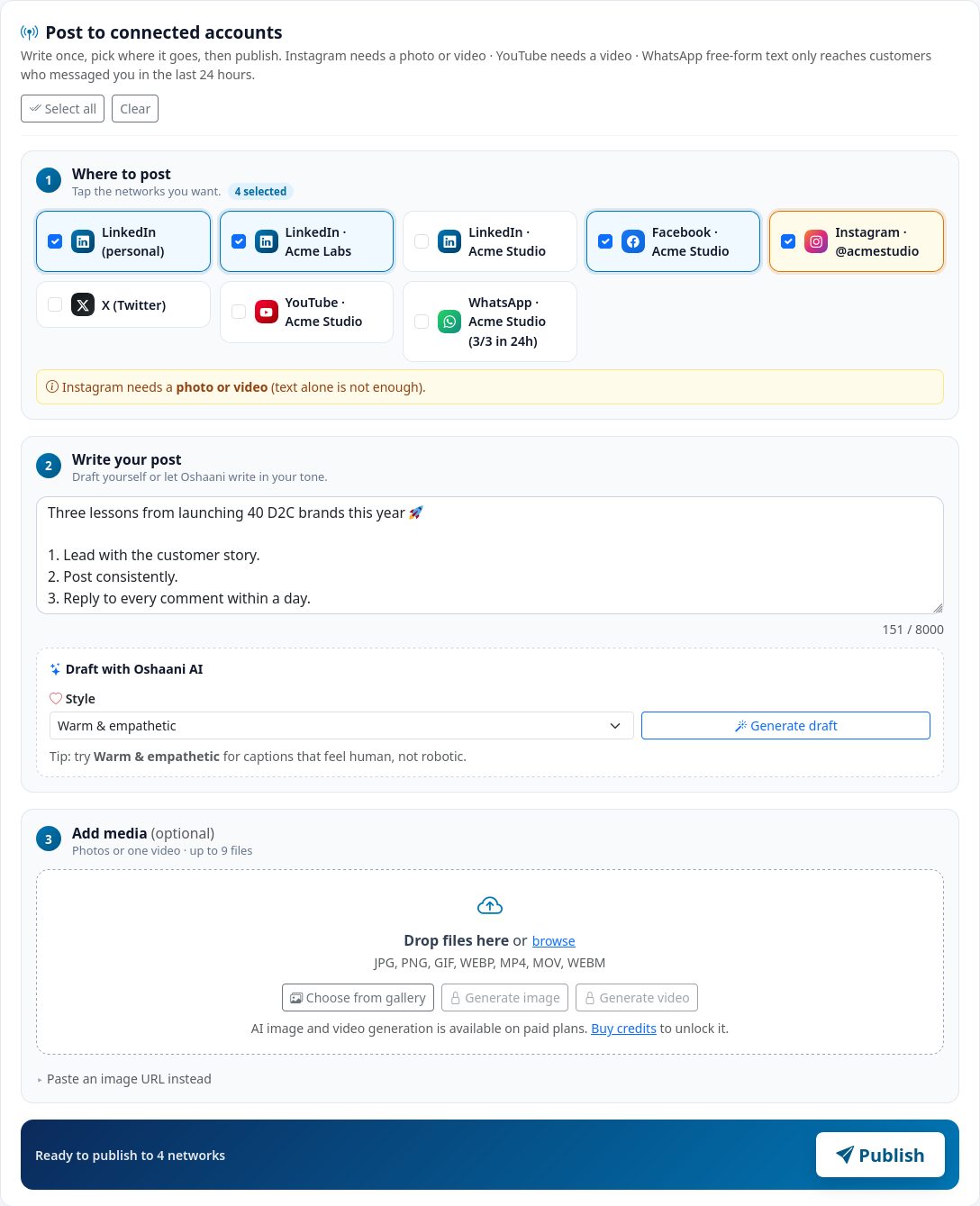
Daily publishing starts on the Dashboard in the card Post to connected accounts.
Standard publish procedure
- Where to post: Tap each destination (personal LinkedIn, each company page, Facebook Pages, Instagram, X, YouTube, WhatsApp). Use Select all or Clear as needed.
- Write your post: Type the caption, or choose a style and click Generate draft.
- Add media (optional): Drop photos or one video (up to 9 files: JPG, PNG, GIF, WEBP, MP4, MOV, WEBM), generate an image, or paste an HTTPS image URL.
- Click Publish. Oshaani queues the job and reports success or error per destination. Stay on the page until results appear.
Media rules by network
- Instagram needs a photo or video. Feed photos should be between 4:5 and 1.91:1; Reels should be 9:16. Oshaani pads media that is outside those ratios before publish.
- YouTube needs a video file. Use the YouTube hub if you also need title, tags, and privacy (Private / Unlisted / Public).
- WhatsApp free-form text is sent only to customers who messaged you in the last 24 hours. Older threads need an approved Meta template from the WhatsApp hub.
- X posts are short-form; keep copy within X’s character limit.
For LinkedIn-only create, schedule, and history, use LinkedIn → Posts. Scheduled items also appear on the Calendar.
5. LinkedIn
Personal posts
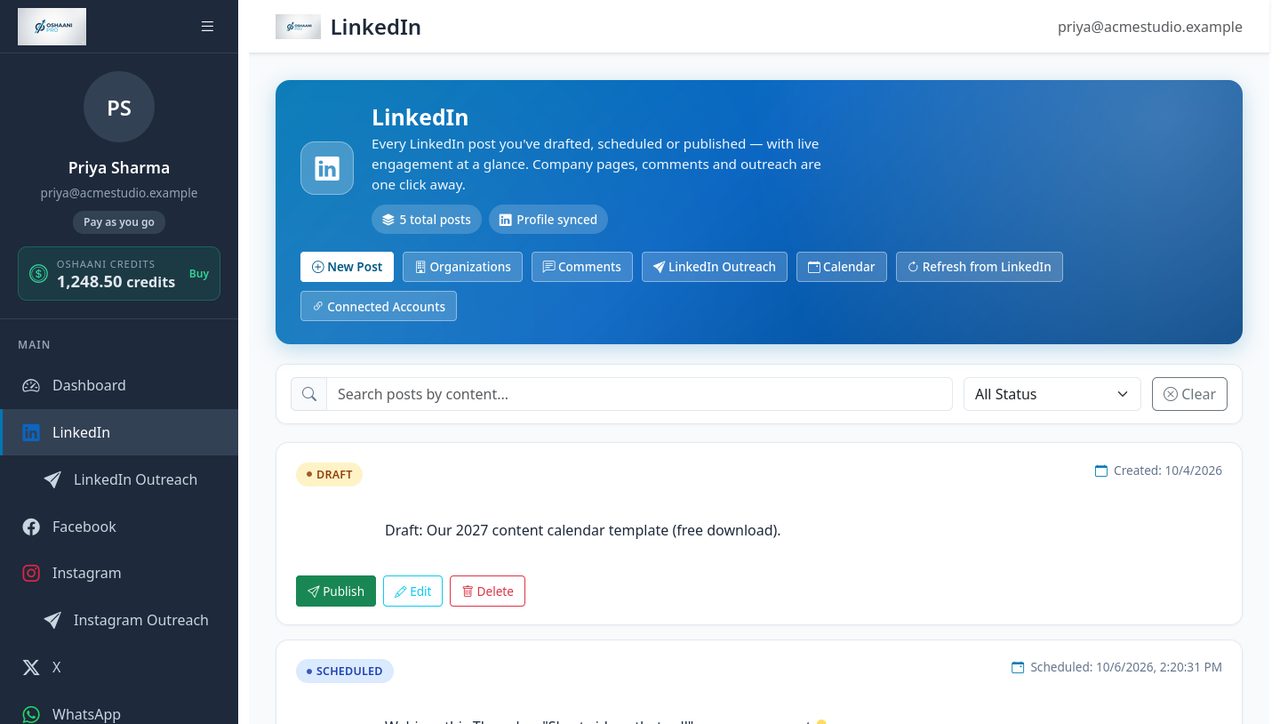
- Open LinkedIn → Posts or use the dashboard composer with your personal profile selected.
- Write or generate content, add media if needed, then publish or schedule.
- Review comments under LinkedIn → LinkedIn Comments.
Company pages (organizations)
Sync, then post
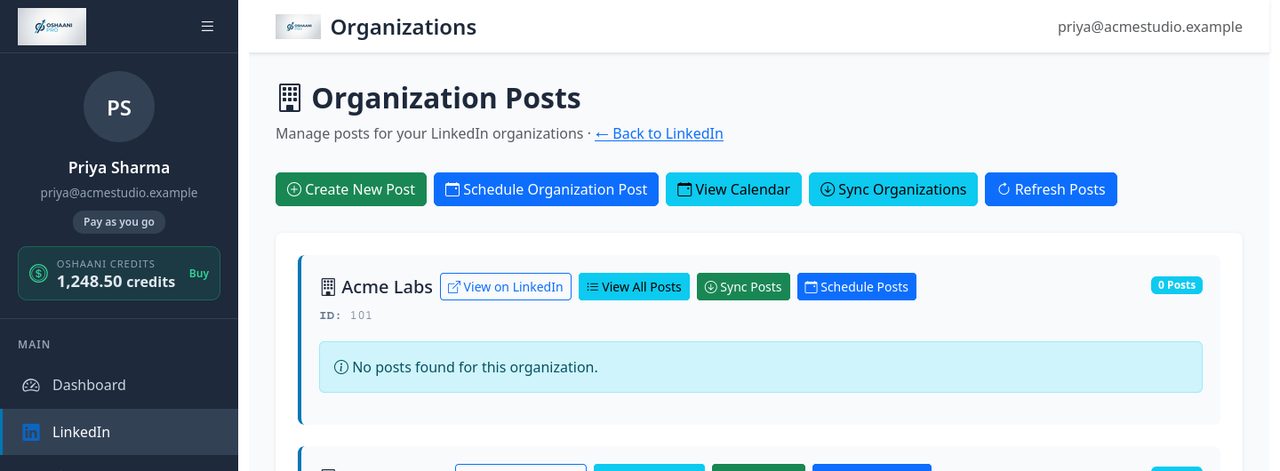
- Go to LinkedIn → LinkedIn Organizations.
- Click Sync Organizations. Only pages you can administer should appear.
- Approved pages (and pages with a blank approval state) show as chips under Where to post. Pending or revoked pages stay hidden until LinkedIn approves them.
- Select the company chip and publish from the dashboard, or use the organization’s schedule/post actions on the Organizations page.
Company page posting denied
If LinkedIn blocks Page posts, reconnect LinkedIn and grant organization/Page posting permission, then sync again. Confirm the page is not pending or revoked.
LinkedIn Outreach
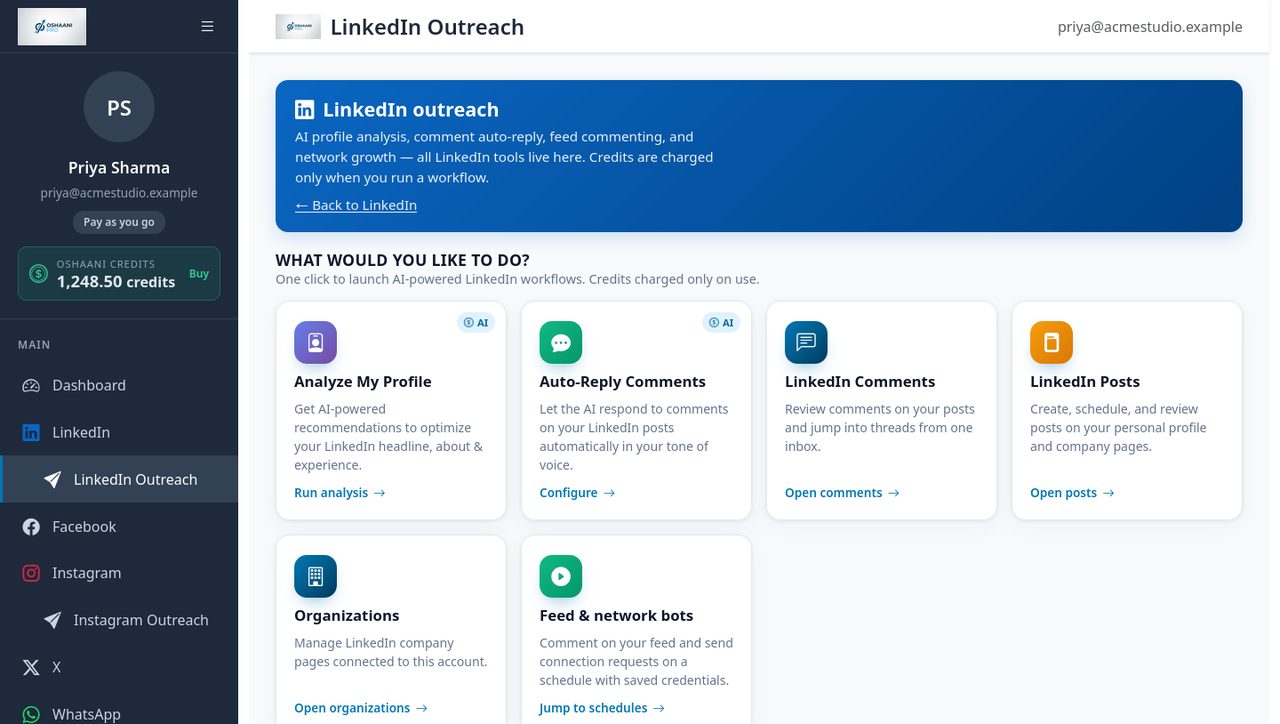
Open LinkedIn Outreach in the sidebar. Credits are charged only when you run a workflow.
- Analyze My Profile — AI recommendations for headline, About, and experience.
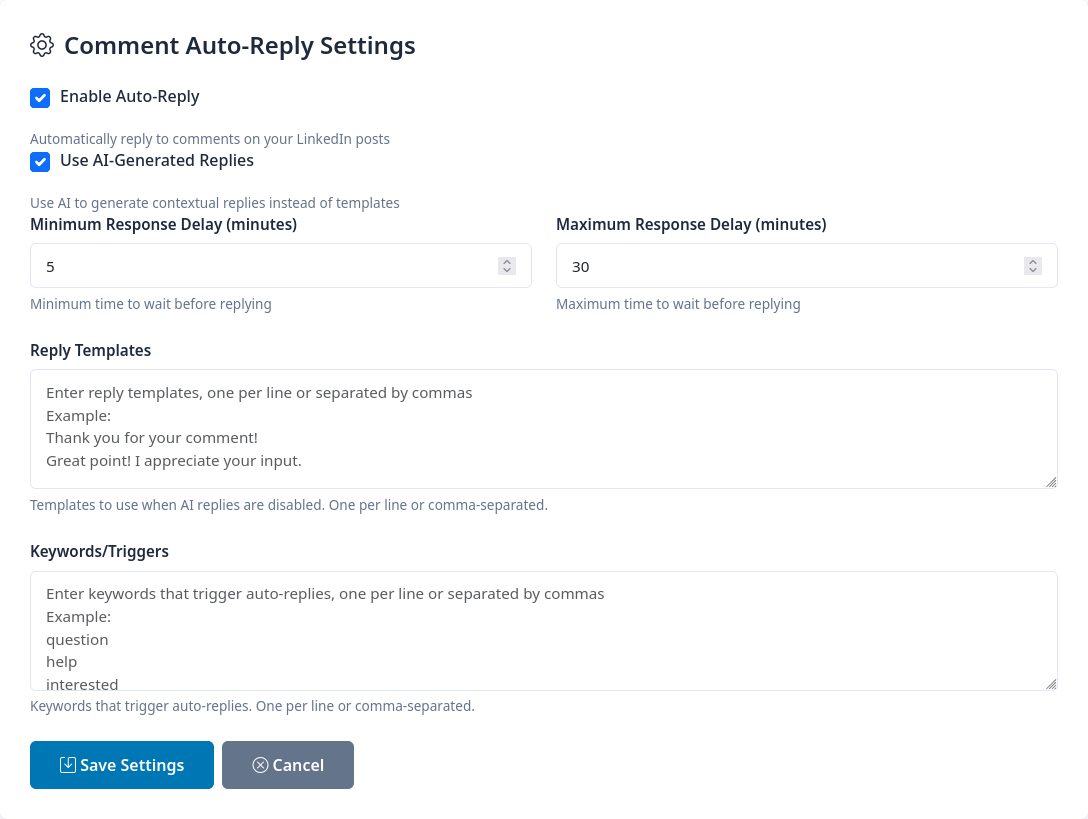
- Auto-Reply Comments — Click Configure to open the comment auto-reply settings; AI replies to comments on your posts in your chosen tone.
- LinkedIn Comments — Review and reply to threads.
- Feed & network bots — Optional: save LinkedIn email/password (encrypted) to comment on your feed or send connection requests on a schedule. Use only if you accept LinkedIn’s rules for that kind of automation.
Set up comment auto-reply
- Open LinkedIn Outreach and click Configure on Auto-Reply Comments.
- Tick Enable Auto-Reply. Keep Use AI-Generated Replies on for replies written in context, or turn it off to use your own templates.
- Set the minimum and maximum response delay so replies look natural, and optionally add keywords that trigger a reply.
- Click Save Settings.
6. Facebook, Instagram, WhatsApp, YouTube & X
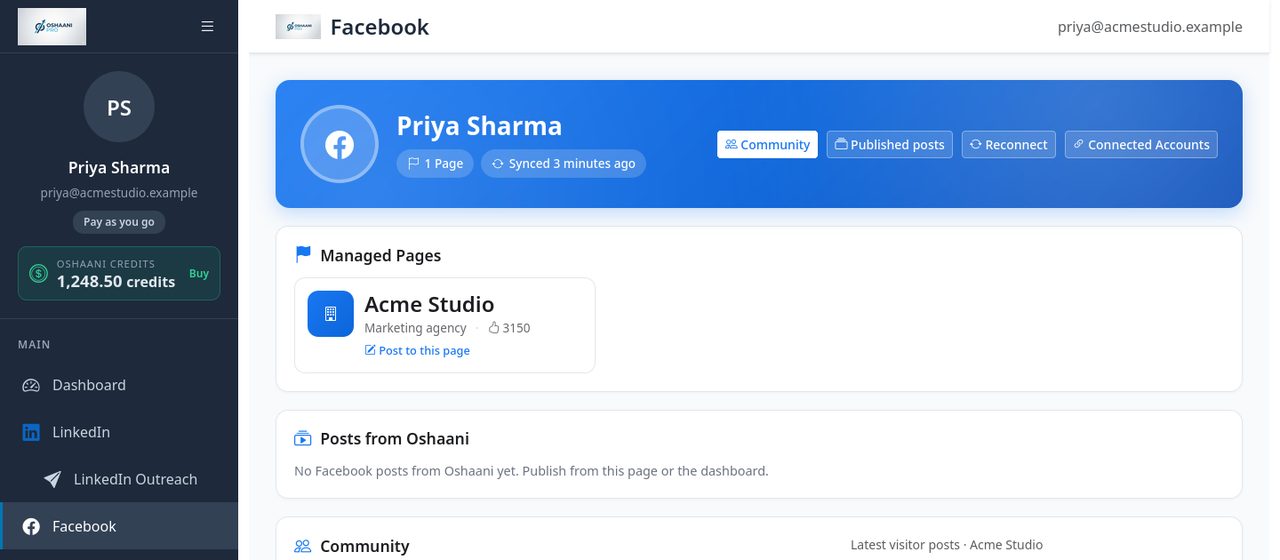
- Open Facebook in the sidebar.
- Confirm the Pages you admin are listed.
- Publish Page posts from the dashboard composer or the Facebook hub.
- Use Community for Page visitor posts, and the Messenger human-agent inbox for DMs, auto-reply, and takeover.
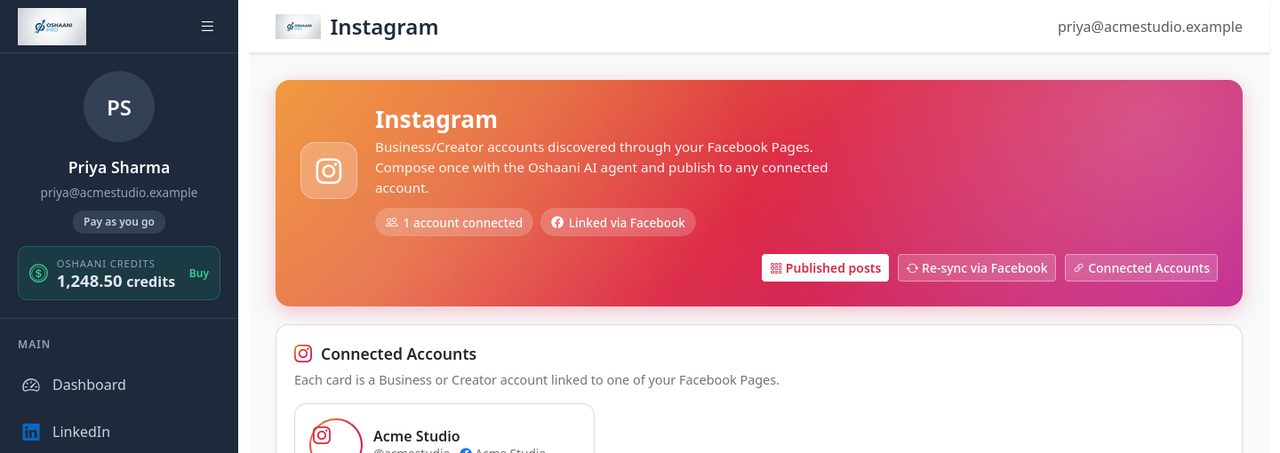
- Open Instagram. Connect a professional account linked to a Facebook Page.
- Publish feed posts or Reels from the composer (media required).
- Use the Instagram hub for the feed, DMs, auto-reply, and human agent inbox.
WhatsApp Business
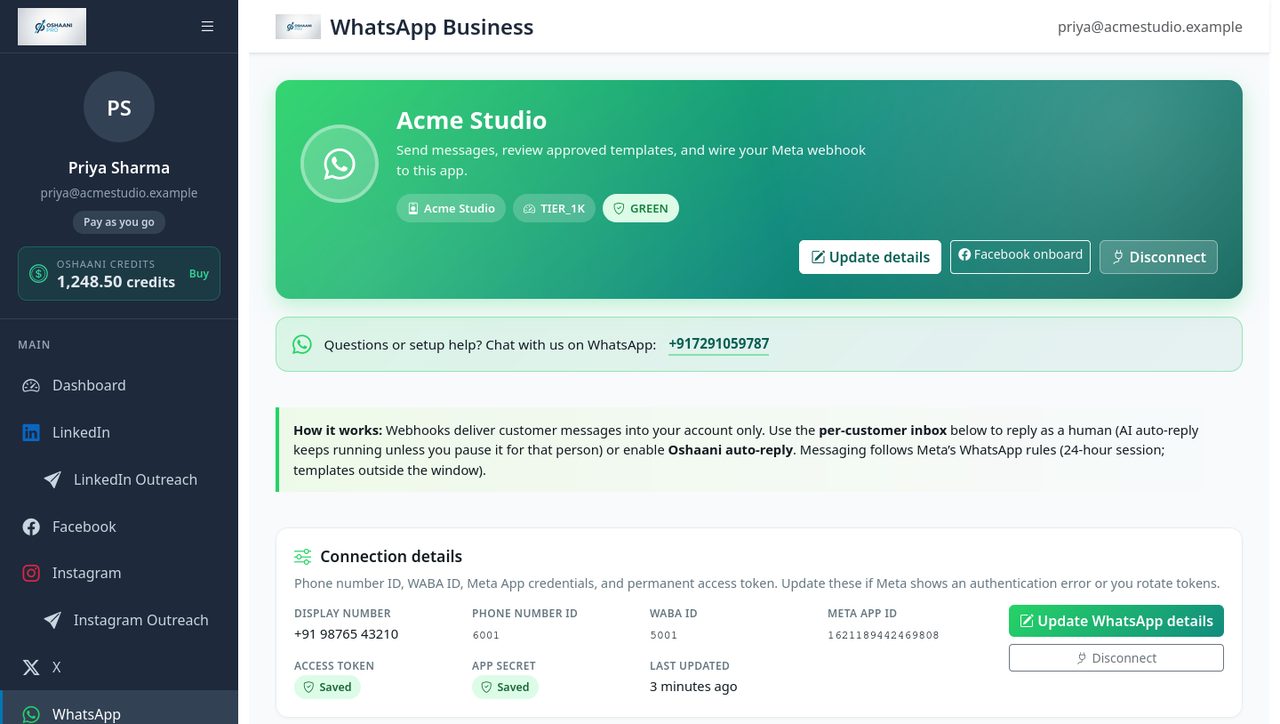
- Open WhatsApp. If you are not connected, complete setup (Embedded Signup is the usual path).
- Confirm Cloud API is active for the number. Business App–only numbers cannot receive DMs in Oshaani.
- Reply in the per-customer inbox, or enable Oshaani auto-reply on the WhatsApp page.
- Send free-form text inside the 24-hour customer-service window. Outside that window, send an approved template from the WhatsApp hub.
- The dashboard composer can broadcast free-form text to contacts currently inside the 24-hour window.
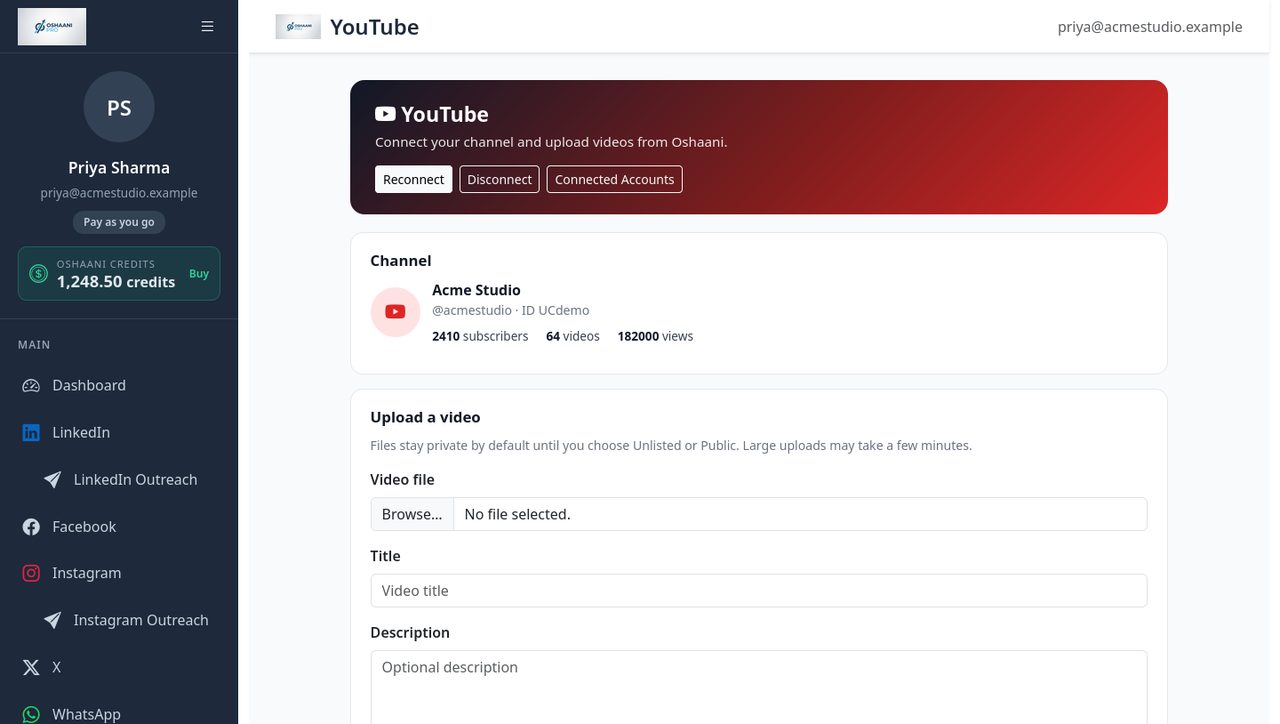
YouTube
- Open YouTube and connect with Google.
- Choose a video, enter a title (required), optional description and tags, and privacy (Private by default, or Unlisted / Public).
- Click Upload to YouTube and wait for the watch URL. You can also send a video through the dashboard composer when YouTube is selected.
- YouTube access tokens expire about hourly; Oshaani refreshes them automatically. Reconnect only if refresh fails.
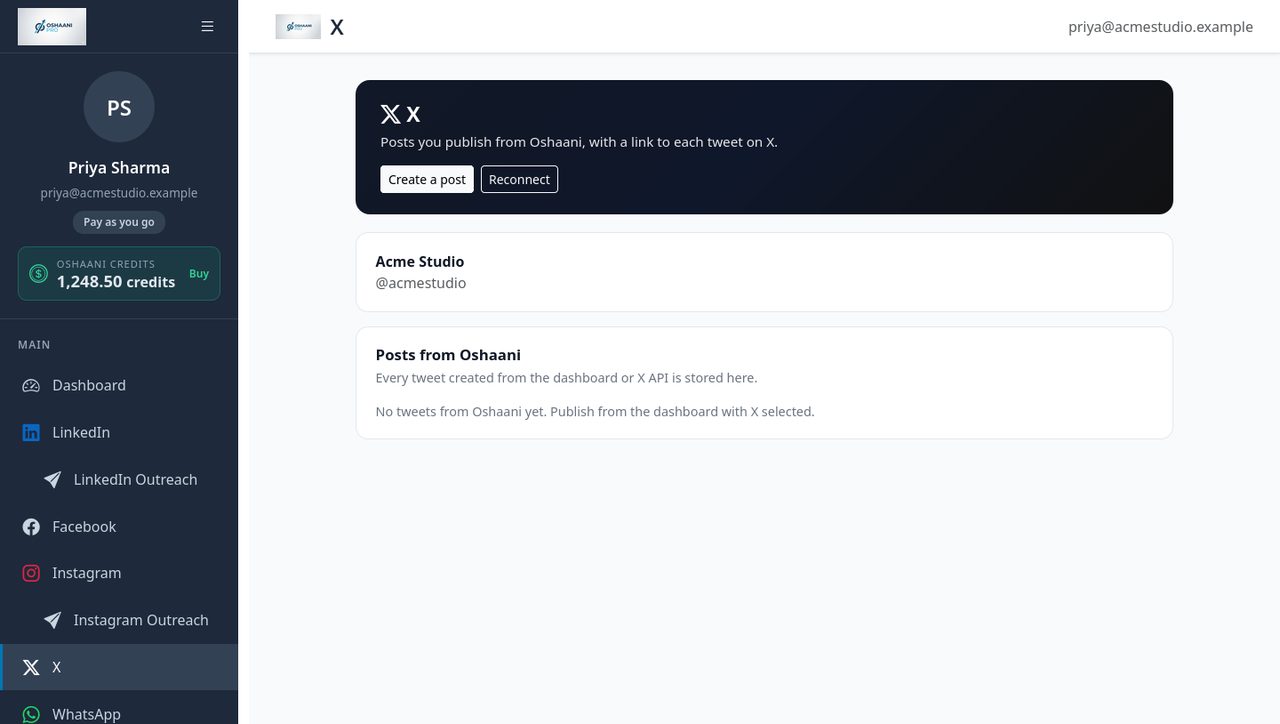
X (Twitter)
- Connect X from Connected Accounts or the dashboard X card.
- Select X under Where to post and publish from the composer.
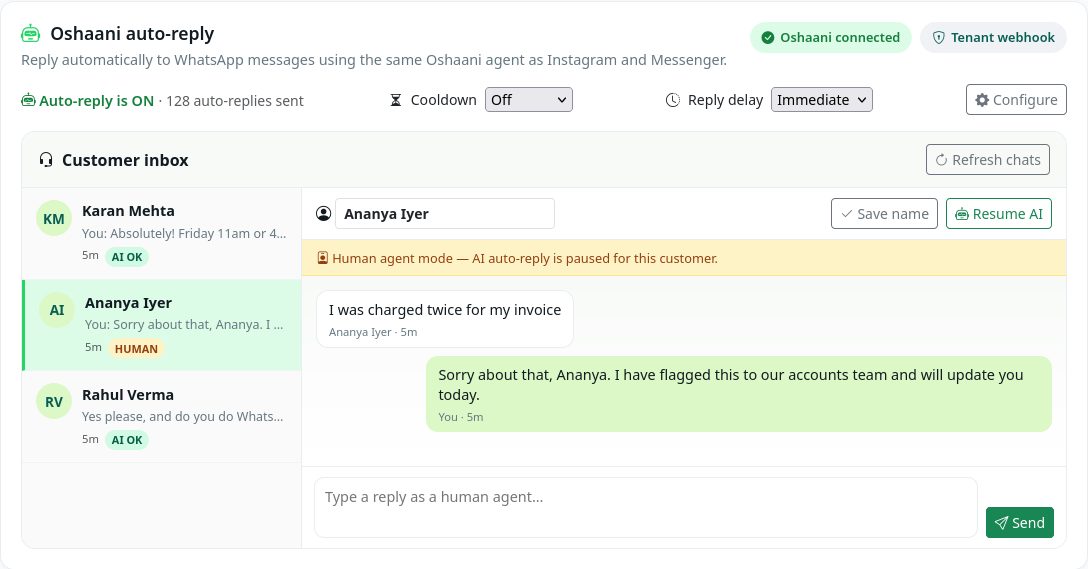
7. Inbox, auto-reply & human takeover
Incoming Messenger, Instagram, and WhatsApp messages are stored per account. You can answer as a human or let Oshaani reply — on the web hubs or from the Android Mobile API.
Turn on AI auto-reply
- Open the network hub (Facebook, Instagram, or WhatsApp) and find the auto-reply panel.
- Enable auto-reply. Optionally set keywords so AI only answers matching messages, a cooldown so the same person is not messaged too often, and a fallback template.
- For LinkedIn comment auto-reply, open LinkedIn Outreach in the sidebar and choose Auto-Reply Comments.
Human takeover
Sending a human reply in a WhatsApp, Instagram, or Facebook Messenger thread does not pause AI auto-reply; the bot keeps answering that person. Use Pause AI in the thread when you want to handle it yourself, and resume when the bot should take over again. Always pause for complaints, payments, or anything that needs a person.
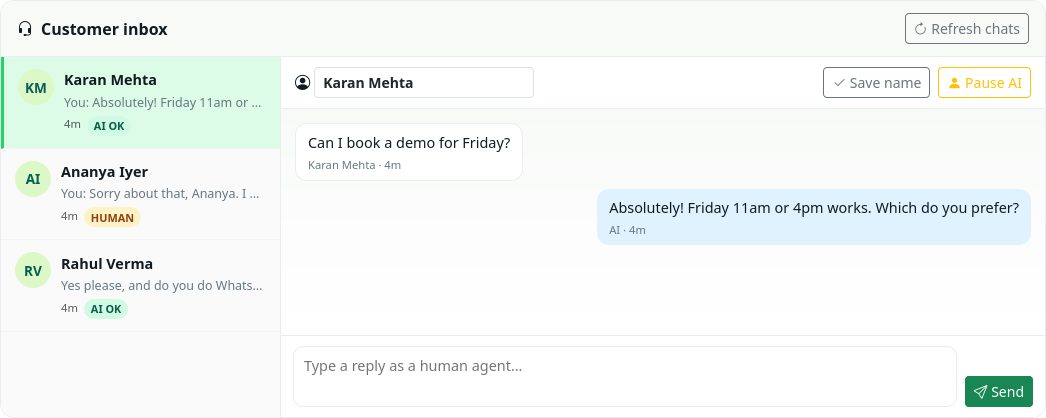
Customer inbox on mobile
- Native Android clients use the same human-agent inbox over
/api/mobile/v1/(Token auth). - List conversations, open a thread, reply, pause/resume AI, and edit auto-reply config for WhatsApp, Instagram, and Messenger.
- On WhatsApp you can also rename a contact or sync your phone address book from the Android app so inbox numbers show contact names. Discovery document:
GET /api/mobile/v1/(v1.3).
8. Calendar & analytics
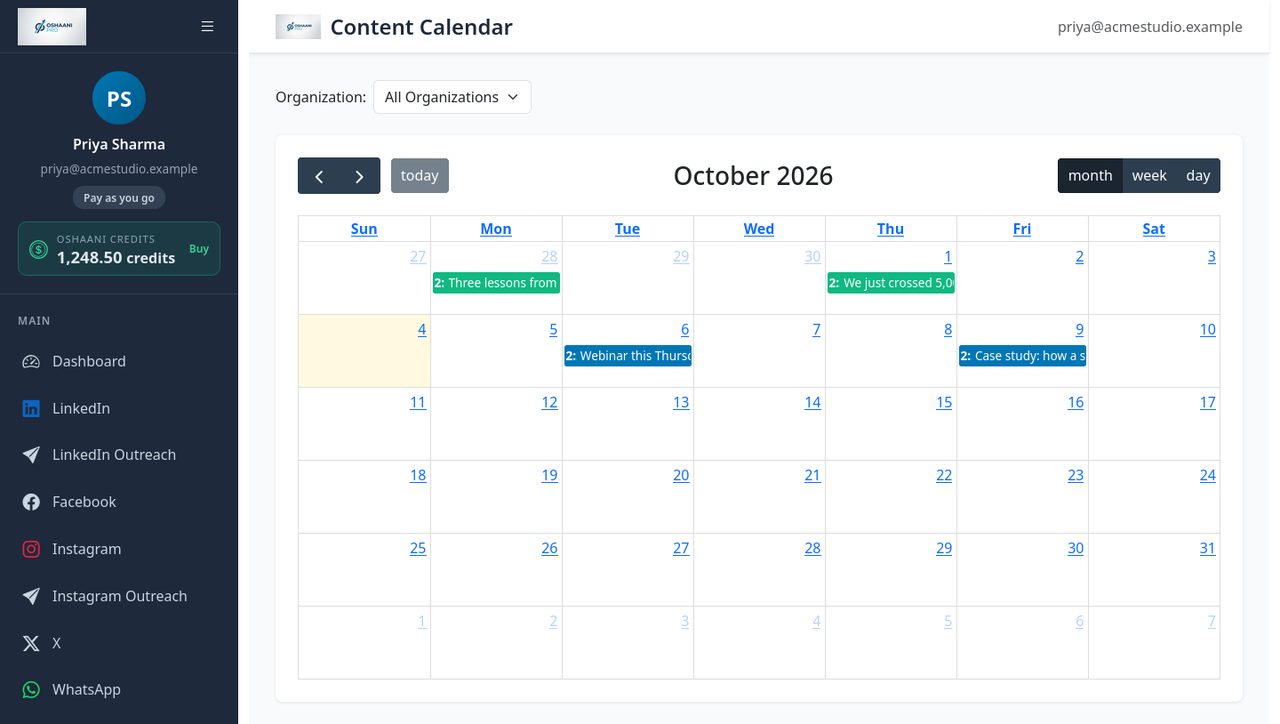
Calendar
- Open Calendar in the sidebar.
- Review scheduled and published posts across networks in one view.
- Reschedule from the calendar when the item supports it.
Analytics
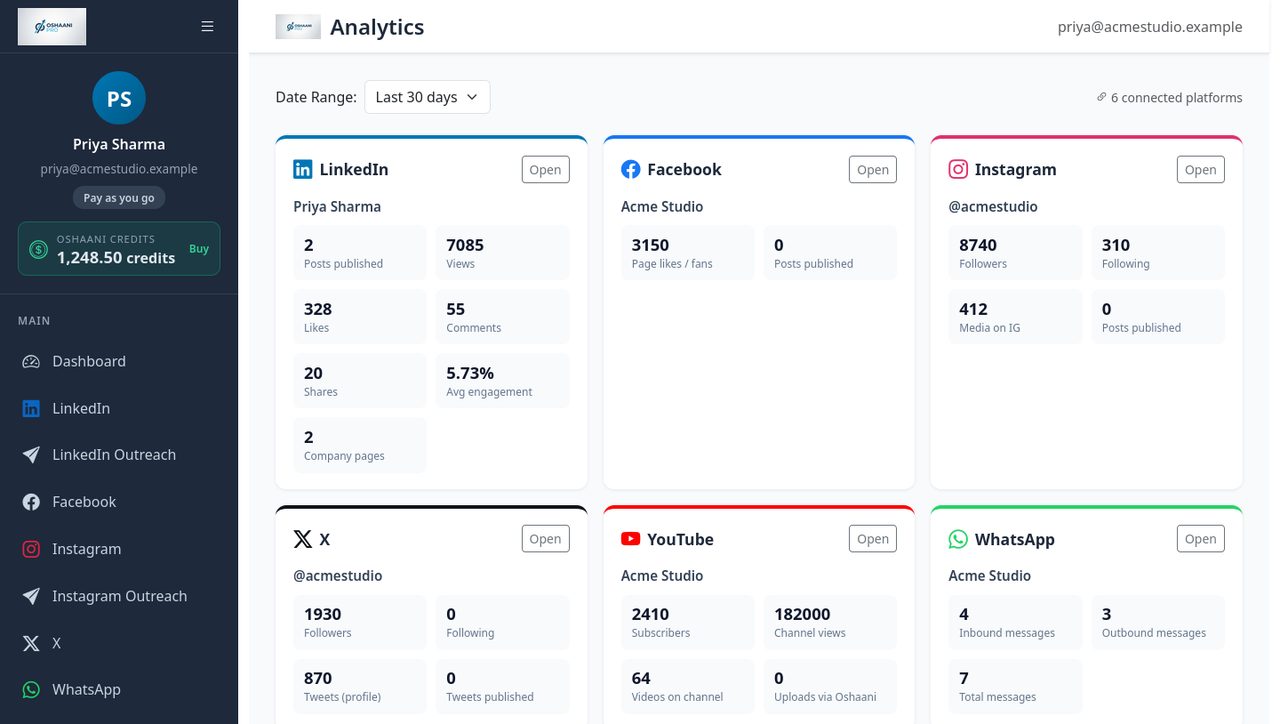
How to read the dashboard
- Open Analytics.
- Pick a date range (last 7 / 30 / 90 days, or all time).
- Check views, likes, comments, shares, and engagement rate. Compare personal vs organization performance where data is available.
Metrics depend on what each network returns. If a chart is empty, publish first, then try All time.
9. AI Agent & conversations
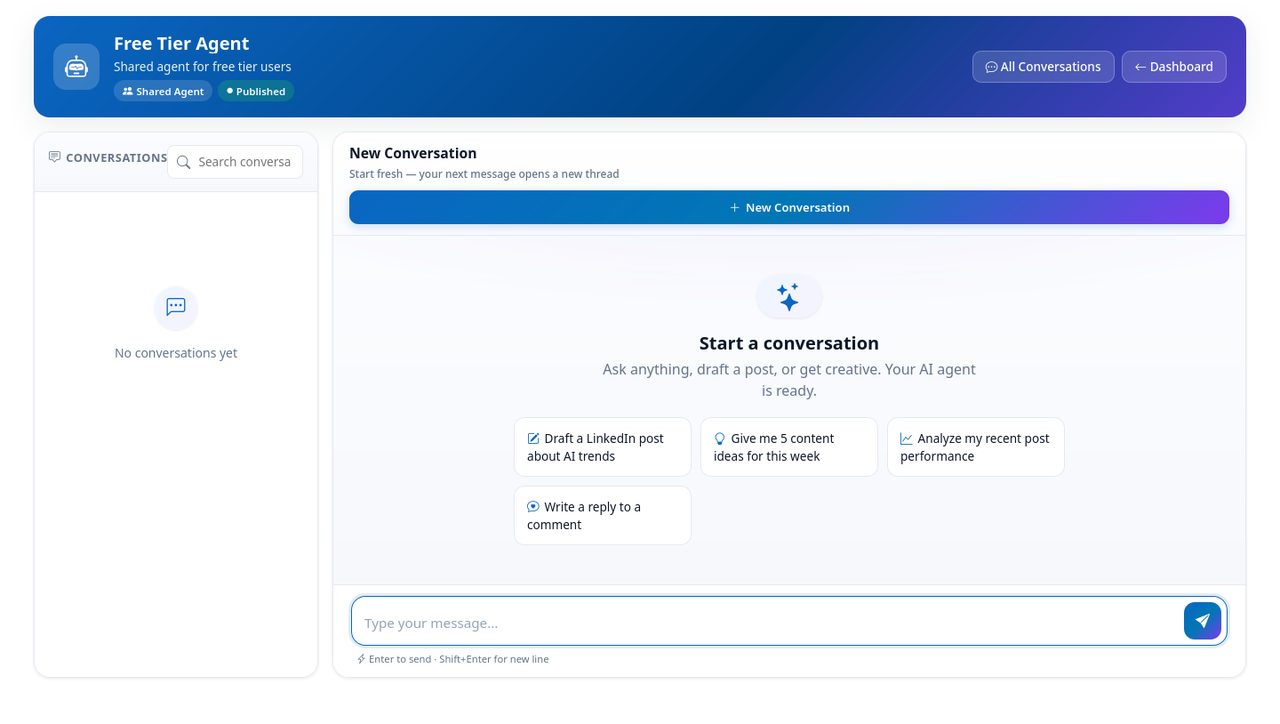
AI Agent
- Open AI Agent in the sidebar.
- Ask for post ideas, caption rewrites, or LinkedIn advice.
- Copy useful replies into the dashboard composer and edit before you publish.
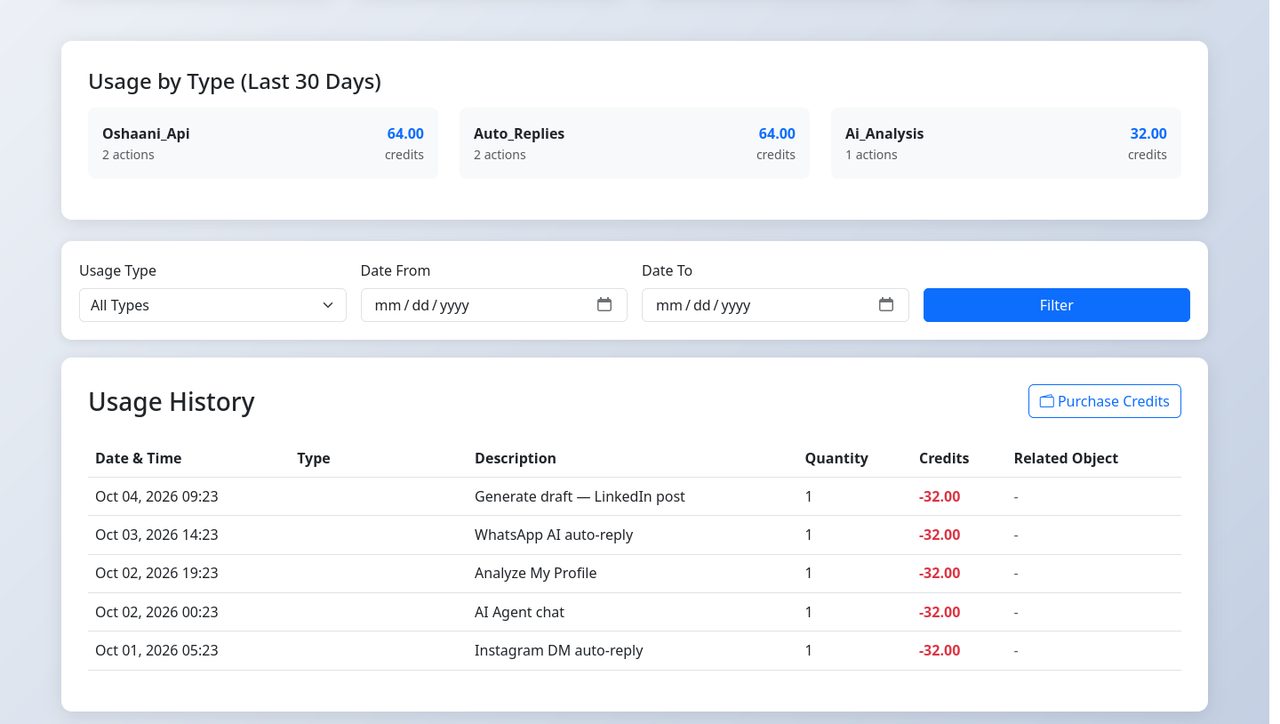
Each AI call uses credits (typically 32 credits ≈ $0.32). Past threads are under Conversations.
10. Credits
Credits pay for AI and metered API actions. Writing and publishing a post yourself does not charge credits.
Pricing
- Standard AI / API actions: 32 credits (~$0.32) each — 2× our oshaani.com / model cost ($1 = 100 credits).
- New accounts start with 200 free AI credits.
- Credits do not expire. $1.00 USD = 100 credits when you purchase more.
Buy more credits
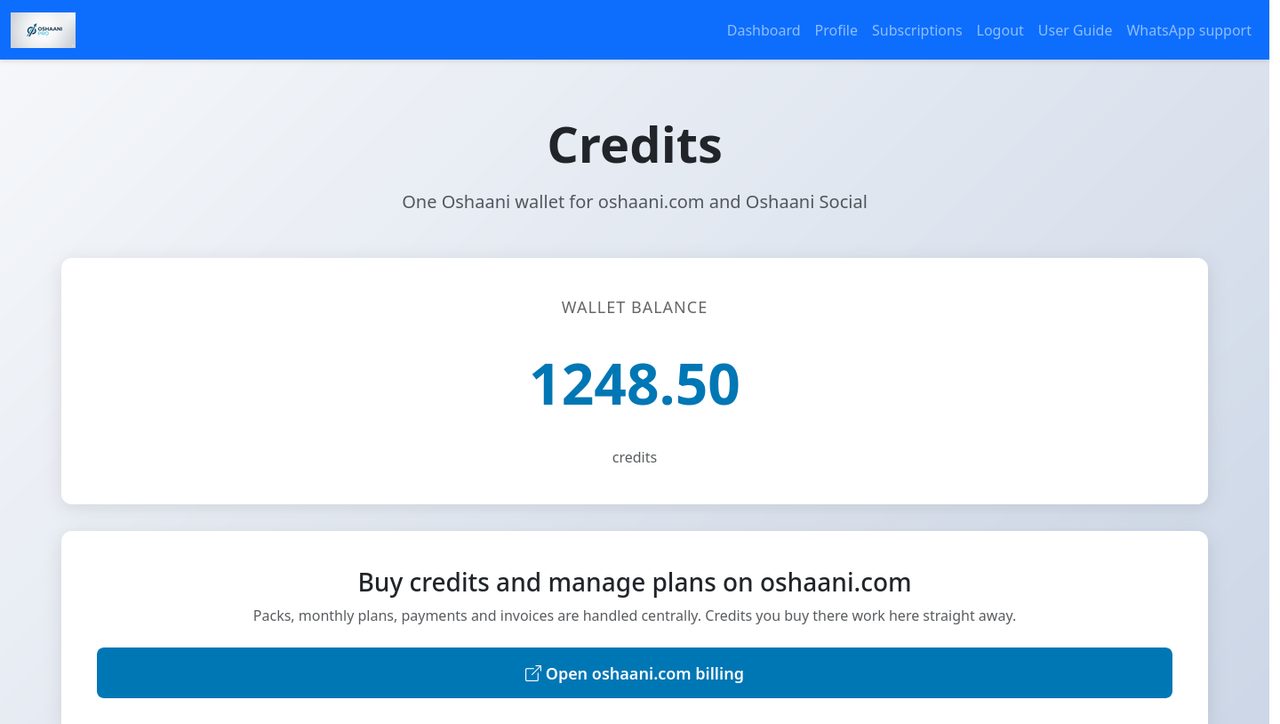
Your credits live in one Oshaani wallet shared by oshaani.com and Oshaani Social.
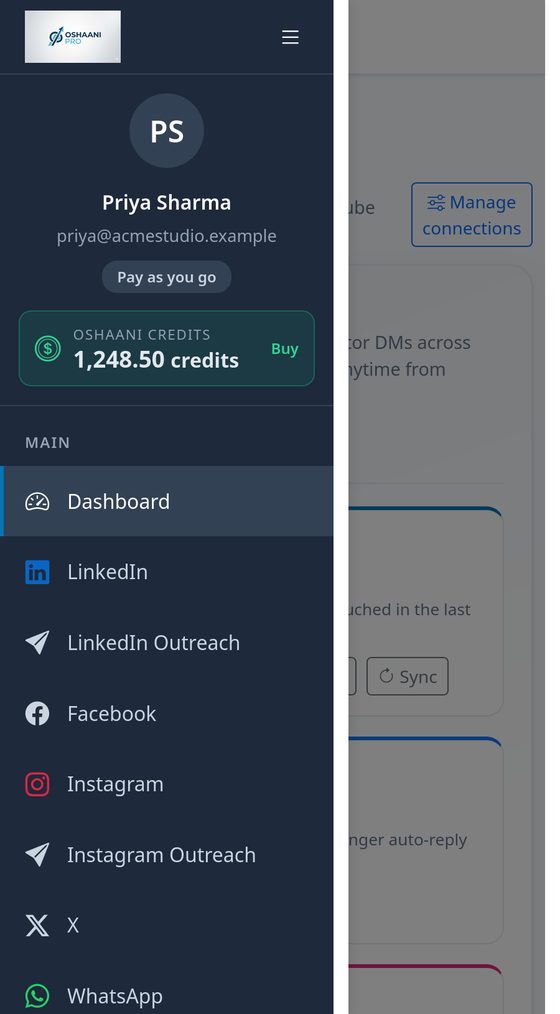
- Click Buy on the credits box in the sidebar (or open Subscriptions → Credits).
- Click Open oshaani.com billing. Packs, monthly plans, payments and invoices are handled there.
- Credits you buy on oshaani.com show up here straight away.
For an offline purchase or invoice, contact support at support@oshaani.com.
Check balance and history under Usage in the sidebar. You get a weekly email if the balance falls below the low-credit threshold (default 10 credits).
11. Platform rules & best practices
Do not skip these limits
- WhatsApp: Free-form replies only inside 24 hours of the customer’s last message. Use approved templates outside the window. Marketing broadcasts must follow Meta opt-in rules.
- Instagram: Professional account required. Attach media. Oshaani will pad odd aspect ratios; square or 4:5 photos and 9:16 Reels still perform best.
- LinkedIn Pages: You must be able to post as the organization. Sync after reconnecting if chips are missing.
- YouTube: Respect YouTube’s upload and copyright rules. Start with Private if you are testing.
- LinkedIn feed/network bots: Optional and credential-based. Using them may conflict with LinkedIn’s user agreement; run only if you accept that risk.
Content habits that work
- Lead with a clear first line; add one image when the story needs it.
- Use 3–5 relevant hashtags on LinkedIn and Instagram; keep X copy tight.
- Reply to comments and DMs within a day, or enable auto-reply with human takeover for exceptions.
- Schedule from the LinkedIn Posts page and Calendar when you are not publishing live.
12. Mobile app
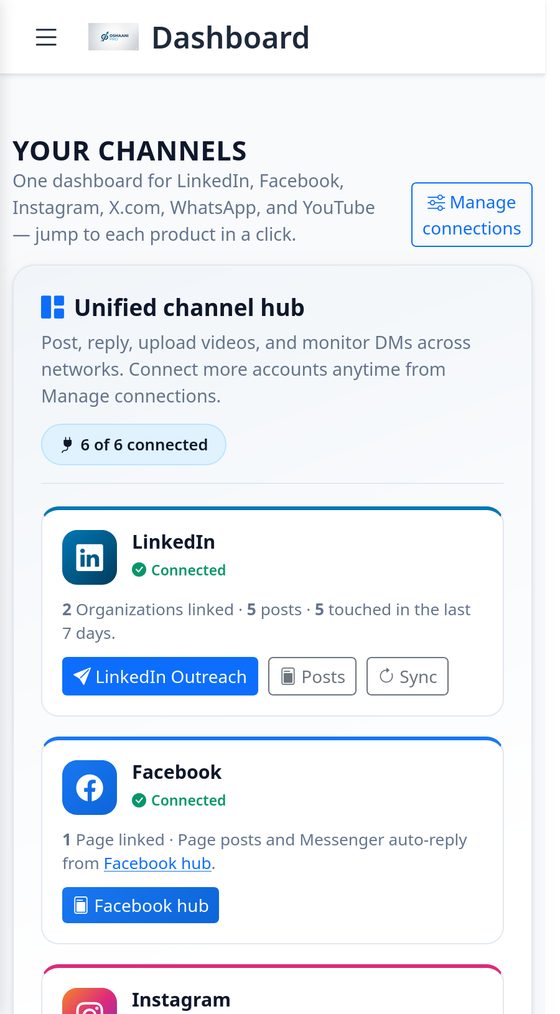
You can use Oshaani in the mobile browser, install the Android app (Play Store TWA, which wraps the same site), or build a native Android client against the Mobile API.
- Sign in the same way as on desktop (TWA / browser).
- Use the dashboard composer and network hubs; layout is the same product, not a separate feature set.
- Native Android clients: token login (
POST /api/mobile/v1/auth/login/), thenAuthorization: Token …. Discovery:GET /api/mobile/v1/(v1.3). - Customer inbox (WhatsApp, Instagram, Messenger), WhatsApp contact sync, composer destinations, YouTube uploads, and account connect links are available on the Mobile API. See the project
mobile/README.mdfor endpoint tables.
13. Troubleshooting
Cannot sign in
- Clear cookies for social.oshaani.com or try a private window.
- Use another method (Google vs LinkedIn vs email).
- If an OAuth app error appears, the network’s redirect URI may be misconfigured — contact support.
Publish failed or still spinning
- Wait for per-destination results; large video uploads can take a few minutes.
- Reconnect the network on Connected Accounts if you see auth or token errors.
- Instagram: attach media. WhatsApp: confirm the 24-hour window or use a template.
- LinkedIn company page: reconnect with Page posting rights, then Sync Organizations.
- AI drafts: confirm you have credits. If you saved your own agent token on Profile, check it is still valid.
Organization missing under Where to post
- Sync Organizations on the Organizations page.
- Confirm you admin the Page on LinkedIn and it is not pending or revoked.
WhatsApp DMs not arriving
- The number must be on Meta Cloud API (not Business App only).
- Finish WhatsApp setup so the webhook points at this app.
- In Meta Business Suite, complete WhatsApp / Cloud API onboarding for that number.
YouTube upload fails
- Reconnect YouTube under Connected Accounts or the YouTube page.
- Retry with a smaller file. Confirm the Google account owns the channel.
AI not responding
- Check your credit balance in the sidebar (an AI action typically needs 32 credits).
- If you saved your own agent token on Profile, confirm it is still valid, or clear it to use the default key.
14. Getting help
Support
- WhatsApp: +917291059787 — fastest for account and publish issues. Start with “Hi Oshaani support, I need help with my account.”
- Email: support@oshaani.com
- This guide: https://social.oshaani.com/sop/ (no login required)
- PDF: Download Oshaani User Guide (PDF)
When you write in, include the network (LinkedIn, Instagram, WhatsApp, …), whether you published from the dashboard composer, and the exact error text if you have it.
Ready to work through this SOP?
Sign in, connect the networks you use, then publish from Where to post.
Sign in Download PDF Back to home Chat with support